


A Simple Description of the GenCodex IDE Debugging Feature
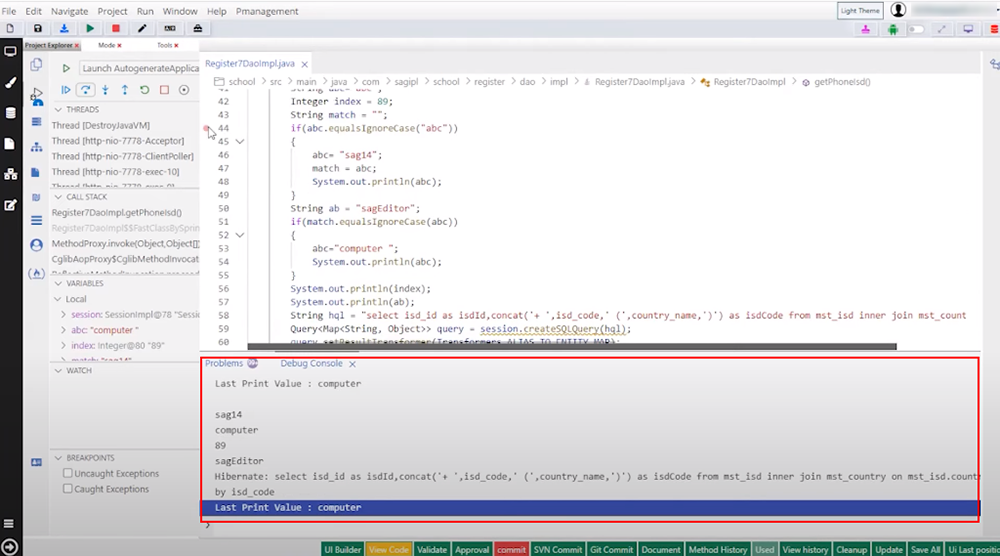
GenCodex provides a unique IDE debugging facility while running a web application without restarting the application. Also, GenCodex can again start debugging the code from the beginning.
Here, GenCodex provides a unique IDE debugging facility while running a web application without restarting the application. Also, GenCodex can again start debugging the code from the beginning.
also shows the example that if we change the value in the variable, that particular change is accepted and managed by our IDE itself. Similarly, GenCodex demonstrates this with the query that if a change is made in the query after a restart, the debug result will be changed, saving time for the developer because he no longer needs to restart the debugging repeatedly.
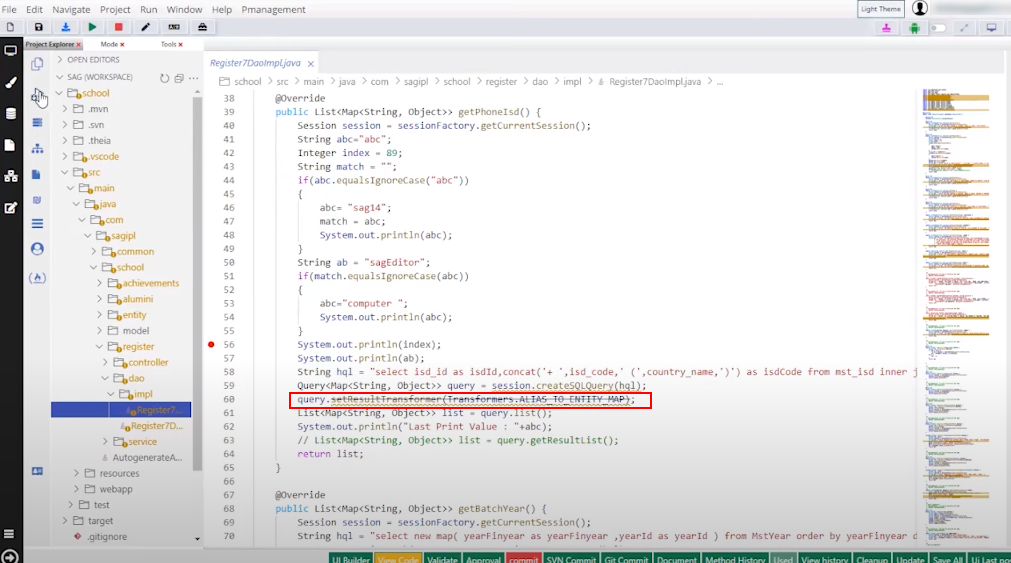
Also, if one uses any old library code, then striking out the particular line shows our IDE itself.
Why Choose GenCodex Tool for Debugging Your Code?
In a debugging tool, you run your code step by step to find where a programming error occurred. Your code is then corrected, and you can often make temporary changes to the program to continue running it in the meantime with the help of debugging tools. GenCodex Low Code platform offers debugging without restarting the application and is completely executed on the editor itself and internally. user can simply find out the error and make changes in the code.
Best Features of the GenCodex Tool
There are various features incorporated into the GenCodex platform according to new technology, such as automated code generation for mobile devices and multi-device support. However, here we will list only a few of the most important features, such as:
Multi-Application Development
The GenCodex platform allows individuals to run multiple applications simultaneously across multiple platforms or devices, enabling them to be able to run multiple projects at once.
Drag and Drop UI Design
You can develop apps more efficiently with GenCodex. Components can be moved around and dropped where you need them for more efficient app development.
Auto-Database Design
A database must be created and managed before developers can begin their main work. Data model design can also be handled by GenCodex as an alternative to manual design.
Code Generation for Angular
Developers can save time and effort by automatically generating Angular code using GenCodex Cloud & Online IDE Services.
Step-by-Step Working Process of Gencodex IDE Debugging Feature
Step 1: First, install the GenCodex LCNC/LCAP Platform for web and mobile app development.
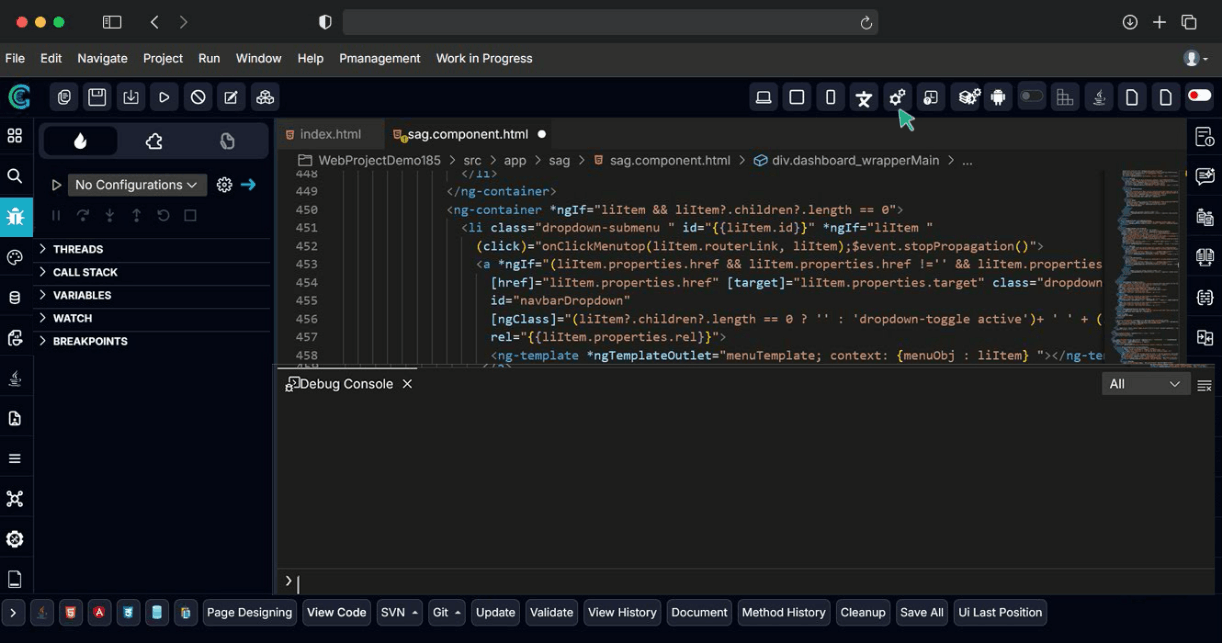
Step 2: After that, go to the file where you want to debug the application.
Step 3: Now place the breakpoint at the relevant code line.
Step 4: You will be shown the 4 Ways to launch the application for debugging
- Current File
- Autogenerate Application
- Attach to Remote Program
- Chrome against Localhost
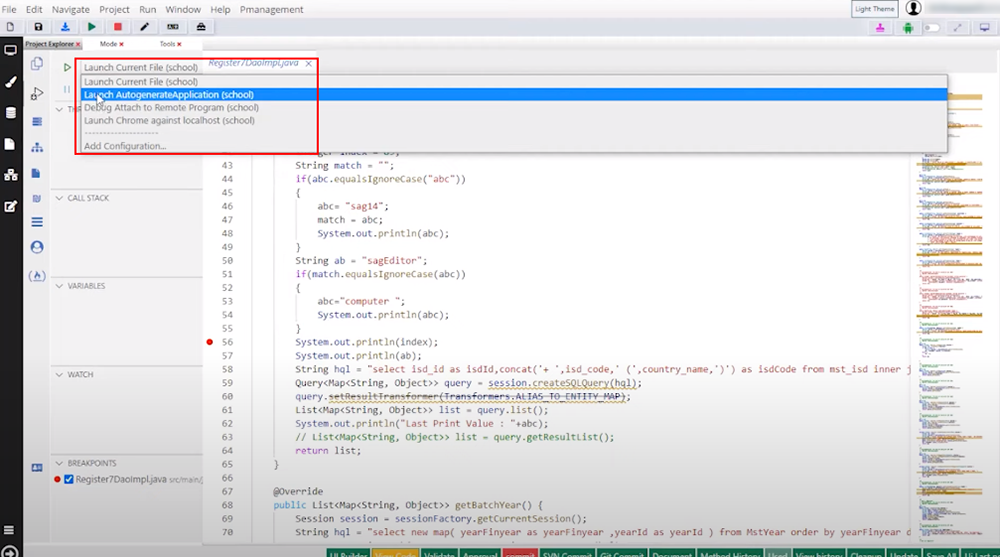
Step 5: Select the “Launch Autogenerate Application” Option.

Step 6: As you run the application in debugging mode, the logs and information will start to display on the console.
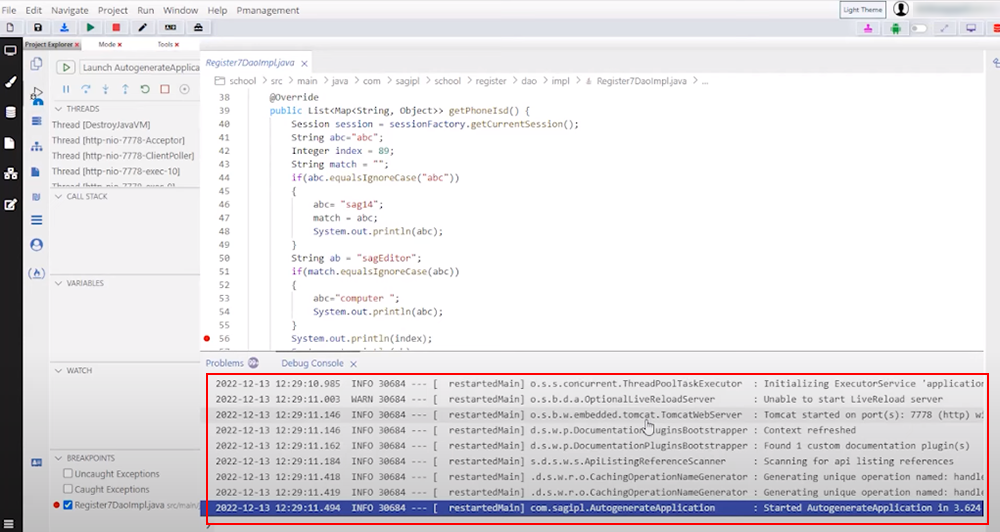
Step 7: The execution will be done one by one on the code line.